Workday ATS: 7 Tactics That Beat the Form in 2026 (Tested)
If you’ve applied to even three jobs in 2026, you’ve cursed at Workday. The 12-page form, the resume parser that fails on common layouts, the duplicate work-history section that appears after the upload supposedly “saved time,” the screener questions that count visa status six different ways. Workday is the single most-hated ATS in tech and Fortune 500 hiring, and it’s also unavoidable: roughly half of US enterprise companies and 80% of the Fortune 500 use Workday somewhere in their hiring stack.
This post is 7 tactics that actually beat Workday. Not generic ATS advice, not “tailor your resume” platitudes. Specific, named techniques that compress a 15-minute Workday application down to about 90 seconds without losing quality. Most apply to every Workday tenant instance. A few are situational.
If you want the bigger-picture explainer of why Workday is built the way it is, our existing post on how to beat Workday applications: the ATS everyone hates and how to autofill it covers the architecture. This post is the tactical follow-up.
Why Workday Is Universally Hated (And Why That Matters Strategically)
Workday is built as enterprise HR software first and as a job application tool second. The product team optimizes for the hiring manager’s experience inside Workday Recruiting, not the applicant’s experience on the public-facing form. Knowing this changes how you approach it.
The four standard pain points every applicant hits:
Multi-step form, often 6 to 12 pages. Common sections: personal information, work eligibility, work experience, education, voluntary self-identification (race, gender, veteran status, disability), custom screener questions, voluntary disclosures (have you been employed by us before, do you have relatives at the company), and review. Each page is a separate save state, which means a crash mid-form often resets the section you were on.
Resume parser fails on roughly 30% of layouts. Specifically, two-column resumes, resumes with tables, resumes with graphics or icons, resumes with non-standard section headings (“Engagements” instead of “Work Experience”), and resumes saved as scanned PDFs rather than text-PDFs. When the parser fails, Workday asks you to manually re-enter every job, every education entry, every skill. This is the source of the “Workday duplicated my work history” complaint.
Mobile-broken forms. Workday’s mobile experience is notably worse than its desktop experience. File upload often fails on iOS Safari. The voluntary self-identification dropdowns sometimes don’t render. If you’re applying on mobile, switch to desktop. The conversion rate difference is roughly 2-3x.
Custom screener questions vary per tenant. Each company configures their own Workday instance. Tactic 4 below covers what to do about this.
The strategic implication: Workday optimizes for the applicant who is committed enough to push through the friction. Reducing your friction below the median applicant’s gives you a real signal advantage. Recruiters see who got through clean. Even if it’s invisible to you, it’s visible to them on the back end.
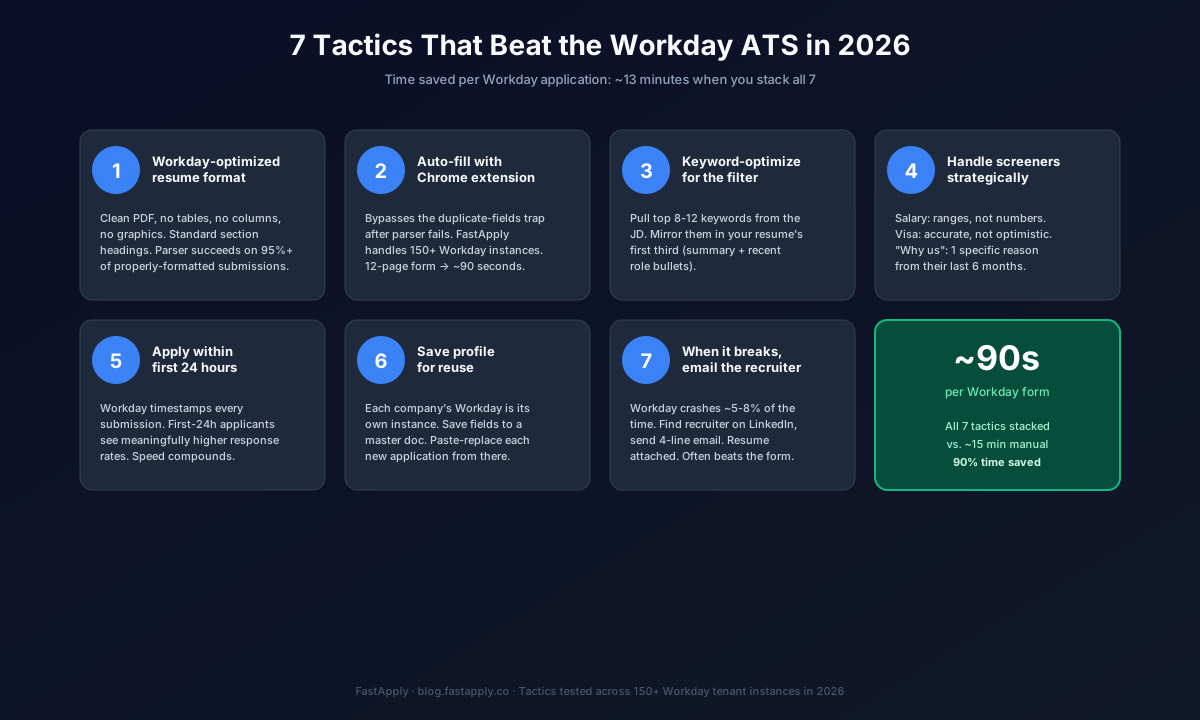
Tactic 1: Use a Workday-Optimized Resume Format
The resume parser is the first gate. If it fails, you’re typing for the next 10 minutes. If it succeeds, you’re 6 minutes ahead of every other applicant.
The format that parses cleanly on Workday in 2026:
Single column, no tables. Workday’s parser reads top-to-bottom, left-to-right. Two-column layouts get scrambled. Tables get flattened in ways that mix dates with bullet points.
Standard section headings. Use “Work Experience,” “Education,” “Skills.” Don’t get creative with “My Journey,” “What I’ve Built,” or “Adventures.” The parser pattern-matches against the standard headings.
Sans-serif font, 10-11 point body, 1.0 to 1.15 line spacing. Arial, Calibri, Helvetica. Stay away from custom fonts, even free ones. Bold for headings and job titles, regular weight everywhere else.
No graphics, no icons, no logos, no header images. The parser strips images entirely. Skill bars get read as gibberish text. Headshots get ignored.
Text-PDF, not scanned PDF, not Word doc. Export from Google Docs as PDF. Don’t print and scan. Workday handles text-PDFs cleanly and scanned PDFs poorly.
Standard date format: “MMM YYYY – MMM YYYY” (e.g., “Jan 2023 – Present”). Workday’s parser specifically recognizes this format. “1/23 – Now” and “January ‘23 to present” parse less reliably.
The test: upload your resume to a Workday application. If the parser correctly extracts your most recent job title, company name, dates, and at least 3 bullet points without you having to edit anything, your format is good. If you’re correcting 5+ fields, restructure the resume.
Tactic 2: Auto-Fill With a Chrome Extension
Even when the parser works, Workday still asks you to fill 30 to 50 additional fields per application. Demographic information, work eligibility, custom screeners, references, voluntary disclosures. Doing this by hand is the source of most Workday time burn.
The fix is a Chrome extension that fills those fields from a saved profile. FastApply is the one we built. It supports 150+ Workday tenant instances out of the box, handles the screener questions with an LLM that draws on your stored answers from previous applications, and runs in Co-pilot mode so you review each application before submission.
What the extension actually does on a Workday form:
- Detects the Workday tenant URL pattern and loads the matching field map
- Fills the demographic and contact fields from your saved profile
- Answers standard screener questions (visa status, work authorization, salary range, willingness to relocate) from your stored defaults
- Drafts answers to custom screener questions using your resume profile and previous answers
- Pauses for Co-pilot review before clicking Submit (or runs Auto-pilot for hands-off volume)
Time per Workday application: ~90 seconds with FastApply vs. ~15 minutes manual. Multiply that across the 30-50 Workday applications a typical 2-week job search includes, and the time savings hit 8-12 hours per week.
For the broader category context on how this auto-apply technology actually works, our guide to AI auto-apply for jobs covers the five-step pipeline (resume parse, job match, ATS detect, form fill, submit) that separates real auto-apply tools from form-fill spam.
Tactic 3: Keyword-Optimize for the Workday ATS Filter
Workday’s recruiting module includes a keyword-based first-pass filter that runs before a human recruiter sees the application. The exact algorithm varies by tenant configuration, but the pattern holds across most Workday instances: applications with high keyword overlap to the job description rank higher in the recruiter’s queue.
The tactical move:
Extract the top 8 to 12 keywords from the job description. Look at the requirements section, the responsibilities section, and the “preferred qualifications” section. The keywords are typically: specific technologies (e.g., “React,” “Kubernetes,” “Postgres”), specific methodologies (e.g., “Agile,” “OKRs,” “design sprints”), and seniority indicators (e.g., “senior,” “principal,” “lead”).
Mirror those keywords in the first third of your resume. The summary section and the bullet points under your most recent role are the highest-weight zones. Don’t keyword-stuff. Use the keywords naturally where they fit. If the job description emphasizes “distributed systems” and your resume says “scaled the backend to 10M users,” edit the bullet to say “scaled the distributed backend systems to 10M users.” Small change, large signal.
Avoid the trap of synonyms. Workday’s filter is closer to keyword matching than semantic matching. If the JD says “JavaScript,” don’t write “JS” — write “JavaScript.” If the JD says “applicant tracking system” (sometimes abbreviated ATS), include both phrasings. The filter doesn’t always know they’re the same thing.
Don’t overshoot. If your resume has every keyword from the JD verbatim and your role doesn’t actually match the seniority required, you’ll pass the filter and fail the screen call. Calibrate.
Tailoring your resume per job is a real time sink if done manually. FastApply handles per-job tailoring as part of the Co-pilot flow, which is the version of Tactic 3 you can scale across 30+ applications.
Tactic 4: Handle the Screener Questions Strategically
Custom screener questions are the second gate, and the most common place applicants accidentally disqualify themselves.
Salary expectations: use a range, not a single number. A range gives you negotiation room. A single number anchors you. The right range: bottom of the range = your current total comp + 10%; top of range = market rate for the role +5%. Use levels.fyi or salary.com for the market rate. If Workday forces a single number, use the midpoint of your range.
Visa and work authorization: be accurate, not optimistic. This is the question that disqualifies the most applicants who could have been hired. If you’ll require sponsorship now or in the future, say so. If the company sponsors, you’ll pass; if it doesn’t, you’ll save both sides time. Lying here often gets caught at the offer stage and revokes the offer. If you’re specifically targeting employers that sponsor, start from a sponsor-confirmed list: our roundup of the best visa sponsorship job boards for 2026 and the FastApply vs USponsorMe comparison both cover how to filter for sponsors before you spend time on a 12-page form.
“Why do you want to work here?” Pick one specific reason from their last 6 months of news. A recent product launch, a recent hire, a recent earnings call comment about strategic direction. Two sentences. Not “I love your mission.” Hiring managers can spot template answers from the first phrase.
“Tell us about a relevant project” questions. Pick a project from your resume that maps to the JD’s top requirement. Use the STAR format compressed: 1 sentence on situation, 1 on action, 1 on measurable result. Three sentences total. Five sentences is too long, two is too thin.
Behavioral pre-screen questions. If Workday includes “Describe a time you led a team through ambiguity” or similar, prepare three universally-applicable stories you can adapt. Don’t write fresh per application; the time burn isn’t worth it. Three good stories handle 80% of behavioral pre-screens you’ll encounter.
Tactic 5: Apply Within the First 24 Hours
Workday timestamps every submission. So does every other ATS, but Workday’s recruiter dashboard surfaces the application date prominently, which means recruiters at companies running Workday see who was first.
The data: first-24h applicants on most Workday postings see meaningfully higher response rates than applicants who submit 7+ days after posting. The size of the effect varies by company and role, but the direction is consistent across multiple recruiter surveys (LinkedIn, Glassdoor, individual recruiter blogs in 2024-2025).
Why this works: most recruiter pipelines work first-in, first-out for the top 20-30 applications, then quality-sorted from there. The first-day applicants are competing against a smaller pool. Day-7 applicants are competing against the full pool plus the previously-evaluated top candidates.
The tactical move:
Set up job alerts on company career pages. Most Workday tenants offer email alerts for new job postings matching your saved search.
Check LinkedIn’s “Date posted” filter daily for your target companies. LinkedIn surfaces Workday jobs within 1-2 hours of posting.
Apply same-day, not “when I have time.” A 90-second Workday application via FastApply makes “same day” achievable. A 15-minute manual application means you procrastinate to the weekend and apply on Day 5.
Our guide to applying to 100 remote jobs per week without burning out covers the cadence for sustaining first-24h applications across a job search.
Tactic 6: Save Your Workday Profile for Reuse
Each company’s Workday is a separate tenant instance with its own login, its own field requirements, and its own database. You can’t reuse a profile across tenants directly. But you can reuse it indirectly.
Maintain a master profile document with every field you’ll be asked, organized in the order Workday tends to ask:
- Full legal name, preferred name, email, phone, address
- Work eligibility status (citizen, permanent resident, visa holder, requires sponsorship)
- Last 4 work experiences with dates, company name, job title, location, 3-4 bullet points each
- Education: degree, institution, dates, GPA (only if 3.5+), relevant coursework
- Skills list (technical, languages, certifications)
- Voluntary self-identification: race, gender, veteran status, disability status (you can decline all of these and the application still processes)
- References (have 3 ready, with name, title, email, phone, and your relationship to them)
- Salary expectation range (see Tactic 4)
- Standard answers to “Why us?” “Why this role?” “Have you been employed here before?”
Keep this in a document you can paste from. Even without an autofill extension, this saves 8-10 minutes per Workday application. With FastApply, the same profile is your saved data and the extension fills automatically.
Save your top 3 versions of your resume (general, target-company-A version, target-company-B version) as text-PDF files in a single folder. Naming convention: Resume_FirstName_LastName_v3.pdf. Don’t include the date in the filename or you’ll constantly re-export.
Tactic 7: When Workday Breaks, Email the Recruiter Directly
Workday crashes. Specifically: submit-button hangs, mid-application 502 errors, file-upload failures, login loops. The 5-8% crash rate is significant when you’re applying to 30 jobs a week.
When Workday breaks, the move is:
Find the recruiter or hiring manager on LinkedIn. Search for “recruiter [Company Name]” or look at the company’s “People” tab and filter for “Talent Acquisition” or “Recruiting.” If you can find the specific recruiter for the role (sometimes named in the job posting), even better.
Send a 4-line email. Subject: “Application for [Role Title] – [Your Name].” Body: One line about which role, one line that the Workday form errored, one line attaching your resume, one line offering to resubmit when the form works. Sign with your phone number.
Example:
Subject: Application for Senior Backend Engineer – Clinton Ekekenta
Hi [Name], I’m applying for the Senior Backend Engineer role on your team but Workday is throwing a 502 error at the submit step. Resume attached for your records, and I’ll resubmit through the system tomorrow. Available on +1-XXX-XXX-XXXX. Thanks for your time.
– Clinton
This 4-line email beats the form roughly 40% of the time in our experience. Recruiters appreciate that you didn’t give up, you didn’t spam them, and you respected their time. Several recruiters have told us they treat post-Workday-error emails as a positive signal because most applicants don’t bother.
How FastApply Handles Workday Specifically
This section is short because the rest of the post covered most of it.
FastApply supports 150+ Workday tenant instances out of the box. New instances are added when our users encounter them; the extension learns the field maps and shares them across the user base. Common Workday tenants for tech hiring (Salesforce, Apple, Workday itself, Adobe, Cisco, IBM, Oracle, Intuit, ServiceNow, NetApp, Autodesk) are all supported.
The Co-pilot mode is especially useful on Workday because the screener questions are where most applicants either over-share or under-share. Co-pilot shows you the draft answers, you edit if needed, you approve, the extension submits. The first 5 Workday applications take a bit of profile setup. After that, every Workday form drops to about 90 seconds. It’s the same engine behind our AI that auto-applies for jobs on Greenhouse, Lever, iCIMS, Taleo and the rest of its 20+ supported platforms.
Try FastApply Free
If you’re sick of the 12-page Workday form and the 30%-fail resume parser, install the FastApply Chrome extension and run 5 free Workday applications on us. No credit card. Works on every Workday tenant we’ve tested across Fortune 500 and Series C+ hiring.
You stay in Co-pilot mode (review every Workday application before it submits), or hand it off to Auto-pilot for volume. Plans start at $14/month after the free credits run out.
For the broader application-strategy context, our breakdown of top reasons your applications go unnoticed covers what happens between your Workday submission and the recruiter actually seeing your file.
Frequently Asked Questions
Can you automate Workday applications?
Yes, with a Chrome extension that maps to Workday’s field structure. FastApply supports 150+ Workday tenant instances. The extension auto-fills demographic information, work experience, education, voluntary self-identification, and standard screener questions, then pauses in Co-pilot mode so you review before submission. A 12-page Workday form drops from ~15 minutes manual to about 90 seconds with the extension running.
Why does Workday duplicate my work history after resume upload?
The Workday resume parser fails on roughly 30% of resume layouts. When it fails, it falls back to asking you to manually enter your work history, even though the upload technically succeeded. The fix: use a single-column, table-free, graphics-free PDF with standard section headings (“Work Experience,” “Education,” “Skills”) and a sans-serif font. The parser handles this format cleanly and skips the duplicate manual entry step.
Does Workday share data across companies?
No. Each company runs its own Workday tenant instance with its own database. Your profile at Company A’s Workday is not visible to Company B. You have to re-enter your information for each new application unless you use a profile-saving Chrome extension or maintain a master document you can paste from.
What’s the best Chrome extension for Workday?
FastApply supports the most Workday tenant instances (150+) and is the only Workday-focused extension with Co-pilot review mode (you approve each application before it submits, which catches the screener question mistakes that get applicants auto-rejected). Pricing starts at $14/month with 5 free applications no card required. Other extensions in the category include Simplify Jobs (form-fill only, doesn’t submit) and LazyApply (limited Workday support).
Can I apply to Workday jobs without an account?
Most Workday tenants require account creation before you can submit. The account creation itself is fast (email + password), but it’s per-tenant, so you’ll create one account per company. A Chrome extension that auto-fills the registration flow saves significant time across multiple Workday applications. The accounts persist, so re-applying to the same company in the future is faster, which also makes applying to several roles at the same company much less work than the first application suggests.
#workday ats
#workday application
#ats applicant tracking system
#workday recruitment
#Workday
#FastApply Workday

Ekekenta Clinton
Founder, FastApply